

Close Menu
  • News
  • Guides
    • Grounded 2
    • Wild Hearts
    • Monster Hunter Wilds
    • Monster Hunter World
    • Monster Hunter Stories 2
    • Monster Hunter Stories 3
    • Monster Hunter Now
    • Monster Hunter Rise
    • Monster Hunter Outlanders
  • Features
  • Guard Up Tool
Facebook X (Twitter) Instagram
Trending
  • Despite Being the Bane of Many Hunters, Players Still Want to See Bazelgeuse in Monster Hunter Wilds
  • HoYoverse Reveals Nodusfall Trailer, and It Definitely Looks Like Genshin’s Answer to Monster Hunter
  • The Best Steam Deck Settings for Monster Hunter Wilds
  • MH Wilds Is Steam Deck Verified Now, So How Well Does It Actually Run?
  • Monster Hunter Wilds Players Skeptical As It Gets Steam Deck Verified: ‘That Badge is a Borderline Scam’
  • Monster Hunter Wilds Unveils The Unexpected DIY Tool Behind Nu Udra’s Slimy, Squeaky Tentacle Sounds
  • Monster Hunter Now’s Summer Event Adds 24-Hour Hunts
  • Monster Hunter Wilds Reveals Freaky Details about Doshaguma’s Double Layers of Teeth
Monster Hunter HQMonster Hunter HQ
  • News
  • Guides
    • Grounded 2
    • Wild Hearts
    • Monster Hunter Wilds
    • Monster Hunter World
    • Monster Hunter Stories 2
    • Monster Hunter Stories 3
    • Monster Hunter Now
    • Monster Hunter Rise
    • Monster Hunter Outlanders
  • Features
  • Guard Up Tool
Monster Hunter HQMonster Hunter HQ
Home » How to Force Disable Volumetric Fog in Monster Hunter Wilds
How to Force Disable Volumetric Fog in Monster Hunter Wilds
Image source: Capcom via Monster Hunter HQ

How to Force Disable Volumetric Fog in Monster Hunter Wilds

0
By Sidharta F. Rasidi on March 3, 2025 Guides, Monster Hunter Wilds

Monster Hunter Wilds can look visually stunning at times, but its performance, especially on PC, can be pretty rough. Even high-end rig owners reported that they still see noticeable FPS drop while running the game. Turning down every graphical setting available would be your best bet. However, the Volumetric Fog option doesn’t offer an Off toggle in Monster Hunter Wilds menu. You might think you cannot disable the graphic option completely, but there’s actually a way to do it.
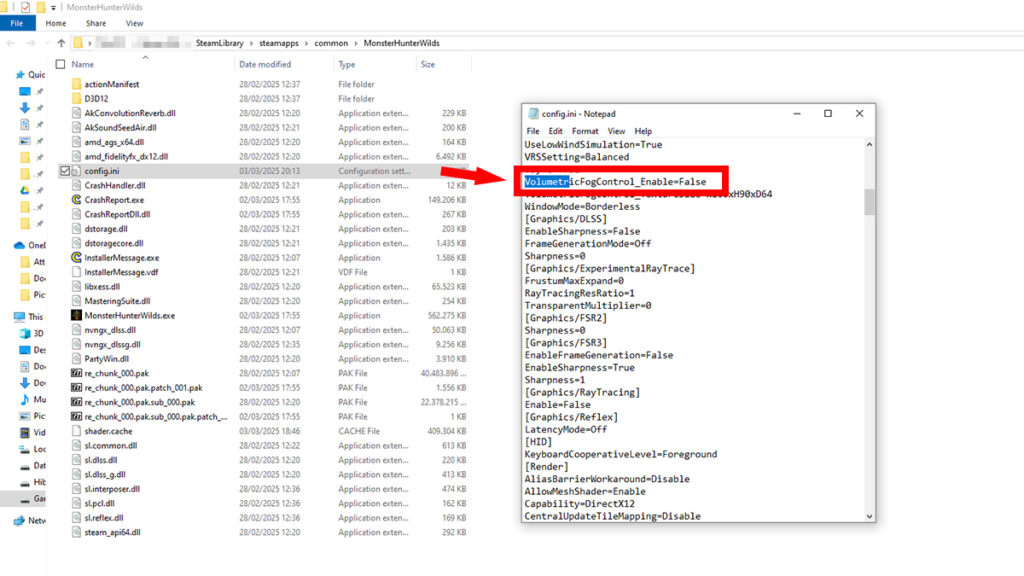
Disabling volumetric fog feature in Monster Hunter Wilds
Image source: Capcom via Monster Hunter HQ

To forcefully disable or turn off volumetric fog, you need to manually modify the value in Monster Hunter Wilds‘s .INI file. Fortunately, navigating through the variables is really easy. If you know how to use Microsoft Word, you should be able to do this too:

  1. Open your Monster Hunter Wilds installation folder.
    • Steam Library > right-click and pick “Properties” > “Installed Files” tab > Click on the “Browse” button.
  2. Open the “config.ini” file using Notepad or other simple text editor of your choosing.
    • Simple text editors like Notepad and Notepad++ only save plain text without hidden formatting or use a file format that can break the file.
  3. Look for the “VolumetricFogControl_Enable=” option.
    • Use CTRL+F to open Notepad’s search bar to make looking up the option much easier.
  4. Change the “True” value to “False,” like in the image above.
  5. Save and close the edited file.

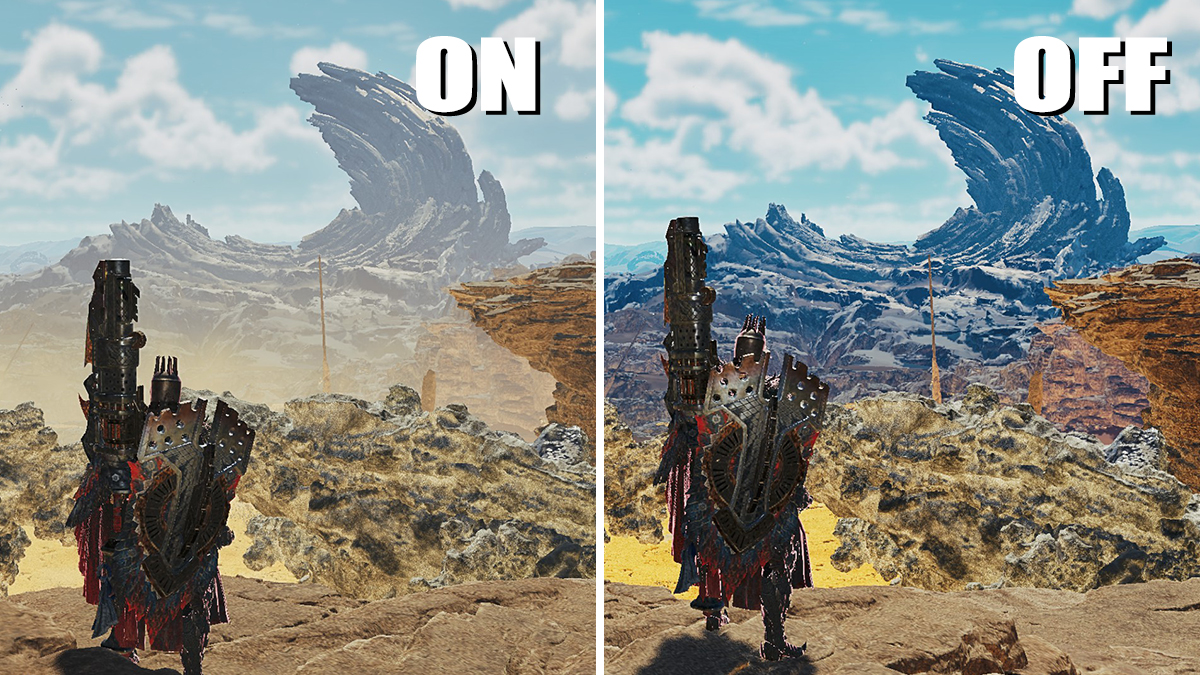
Based on our quick testing, turning off volumetric fog in Monster Hunter Wilds can net you 6-10 FPS boost. This is especially useful for those who’d rather play in native resolution and refuse to use upscaling like DLSS and FSR and frame generation. As seen in the image on top of the article, it also makes the color pop out more.

However, we suggest you set the Texture Quality to High. Otherwise, for some reason, distant textures and scenery would end up turning black. Said issue is very noticeable in Windward Plains and Iceshard Cliffs during Inclemency.

While we can’t tell you the exact reason why it happened, there is one possibility. There’s a chance that the game uses heavy volumetric fog to conceal far away low-quality textures. Disabling it might cause unintended visual glitches. If that bothers you — or you don’t mind seeing haze everywhere — consider keeping the setting or tweaking other graphics options instead.

Share. Facebook Twitter Pinterest Reddit Email
Sidharta F. Rasidi
  • Website

Related Articles

Despite Being the Bane of Many Hunters, Players Still Want to See Bazelgeuse in Monster Hunter Wilds

The Best Steam Deck Settings for Monster Hunter Wilds

MH Wilds Is Steam Deck Verified Now, So How Well Does It Actually Run?

Add A Comment
Leave A Reply Cancel Reply

Features

Capcom’s New Monster Hunter Wilds Demo Arrives With Old PC Questions Still Hanging Around

10 Monsters We’d Love to See in Monster Hunter Wilds: Ascendance

Everything Coming to the Second Closed Beta of Monster Hunter Outlanders

Monster Hunter Outlanders Might Just Be the True MH Wilds We’ve All Been Waiting For

Popular Guides

Gogmazios Full Monster Guide (Strategies, Loot Table, Craftable Items) for Monster Hunter Wilds

Bring down the Specter of War

Jin Dahaad Full Monster Guide (Strategies, Loot Table, Craftable Items) for Monster Hunter Wilds

A very big dragon

Where to Get Speartuna Fin in Monster Hunter Wilds

Gone fishing

Despite Being the Bane of Many Hunters, Players Still Want to See Bazelgeuse in Monster Hunter Wilds

August 25, 2026

HoYoverse Reveals Nodusfall Trailer, and It Definitely Looks Like Genshin’s Answer to Monster Hunter

August 25, 2026

The Best Steam Deck Settings for Monster Hunter Wilds

August 22, 2026

MH Wilds Is Steam Deck Verified Now, So How Well Does It Actually Run?

© 2026 MonsterHunterHQ

MonsterHunterHQ is an unofficial Monster Hunter fan site and is in no way affiliated with Capcom, Tencent, Niantic, Inc., or FromSoftware Inc. Monster Hunter and the Monster Hunter logos are the property and trademarks of Capcom.
  • About Us
  • Meet Our Team
  • Editorial Guidelines
  • Terms of Use
  • Privacy Policy

Type above and press Enter to search. Press Esc to cancel.