

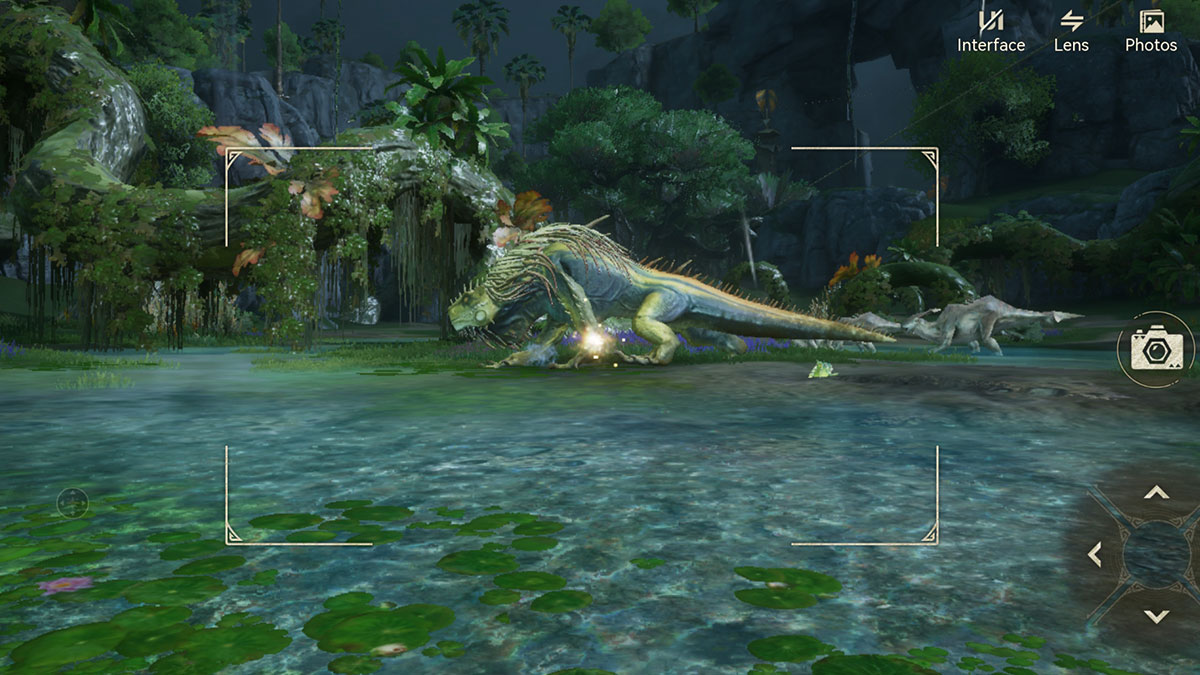
As a full-fledged open-world game, Monster Hunter Outlanders features plenty of scenic locations and giant monsters. Those combined create many opportunities to capture memorable moments, or sometimes a side quest might ask you to take a picture or two. Now, whether you want to take a commemorative photo with fellow Adventurers or complete that task, here’s how to access Monster Hunter Outlanders‘ Photo Mode.
Is There a Photo Mode in Monster Hunter Outlanders?
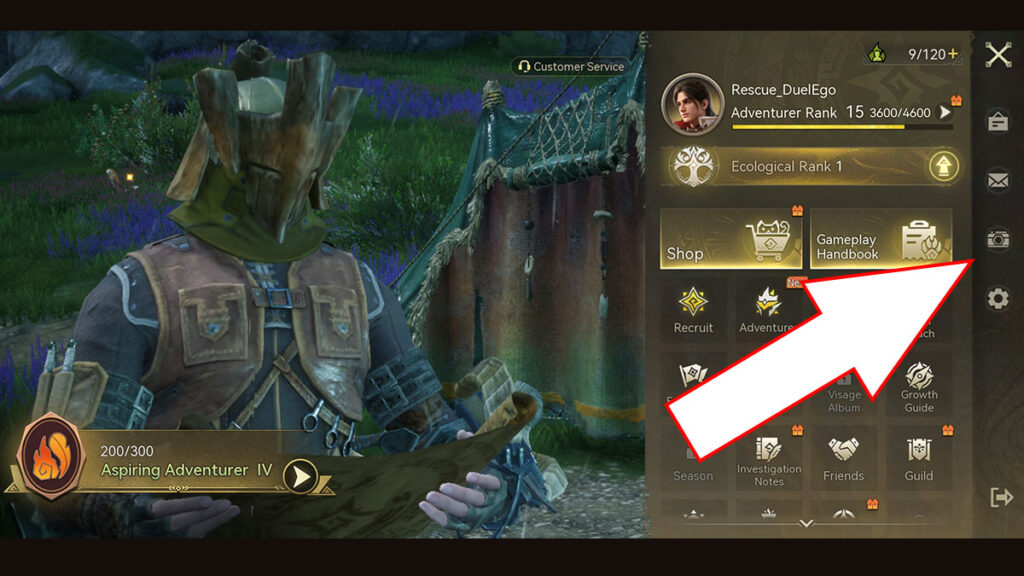
Yes, Monster Hunter Outlanders does have a Photo Mode that lets you freely adjust your camera and capture clean screenshots. To access the Photo Mode, simply follow these steps:
- Open the main menu by tapping the icon in the upper-right corner of your screen. Or if you’re using a Bluetooth gamepad, press the Start/Menu button.
- Select the Camera icon from the menu.
- You can start adjusting the camera angle and zoom level. You can also switch between first-person view and a free third-person camera by pressing the Lens option.
- Click on the Interface button to remove the UI elements.
- Press the camera button once you’re happy with the composition.
All Photo Mode Settings and Gestures
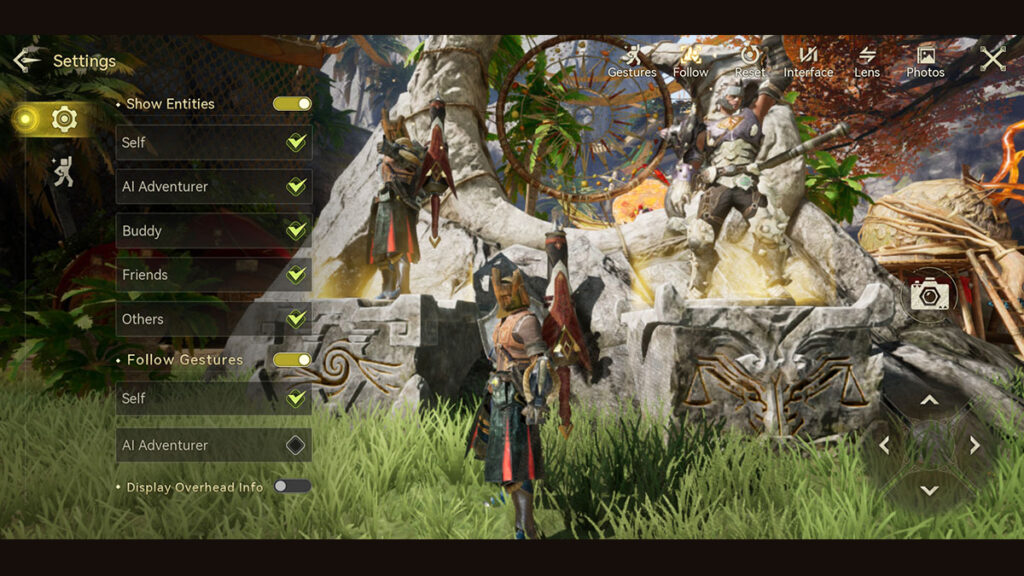
Select the Settings button on the left side of the Photo Mode interface for more customization options:
- Show Entities.
- Self.
- AI Adventurer.
- Buddy.
- Friends.
- Others: Include select structures.
- Follow Gestures.
- Self.
- AI Adventurer.
- Display Overhead Info:
- Default Third-Person View: Locks the camera to your Hunter during third-person view.
- Gestures:
- Wave.
- Hands on Hips.
- Victory Pose.
- Sit.
Unfortunately, though, Monster Hunter Outlanders currently doesn’t offer filter options in its Photo Mode. This means you can’t apply unique visual presets or color effects directly from the camera interface. However, you can still change the game’s overall appearance through Settings > Graphics > Filter Effect.
Keep in mind that the Filter Effect setting affects the game’s overall visuals rather than Photo Mode exclusively. You will need to adjust it every time outside the Photo Mode interface before taking your screenshots.
